2FA for Individuals
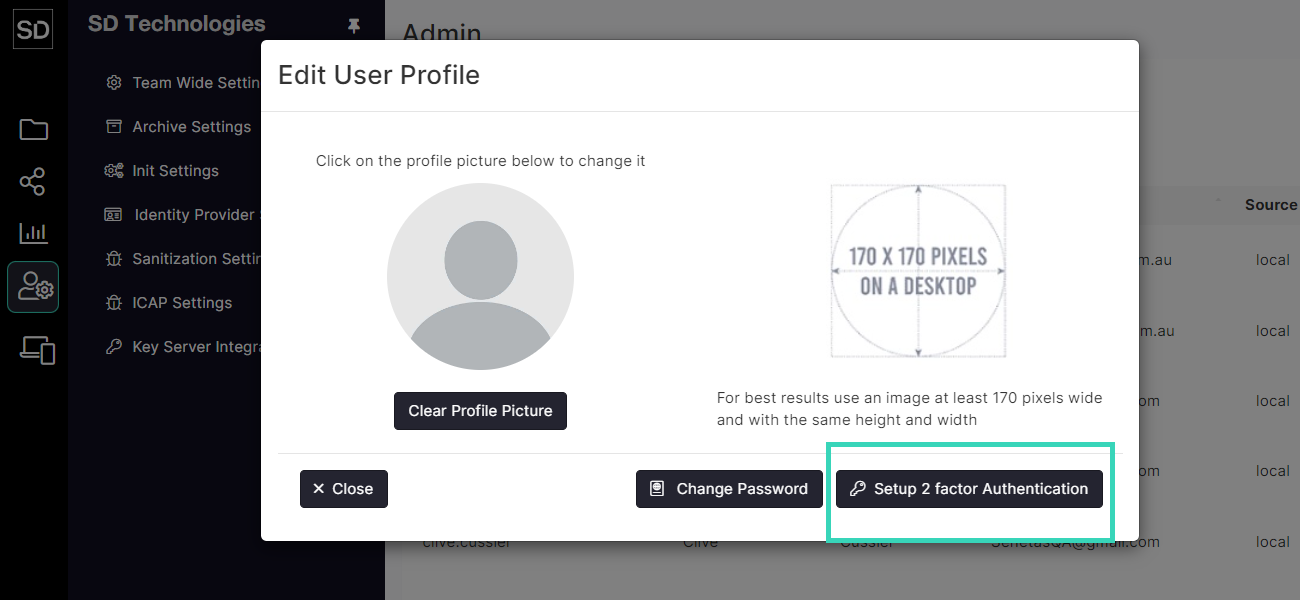
To implement 2FA for an individual account, click on your profile icon or the Edit user profile button to display the Edit User Profile window.

Click the Setup 2 Factor Authentication button.
Enter your password and click the Submit button.
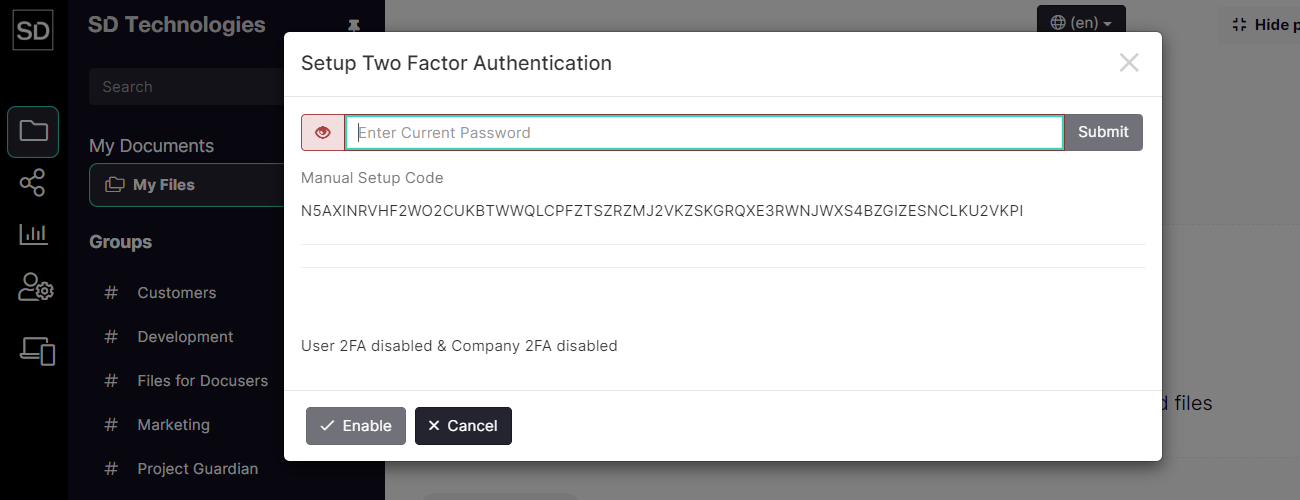
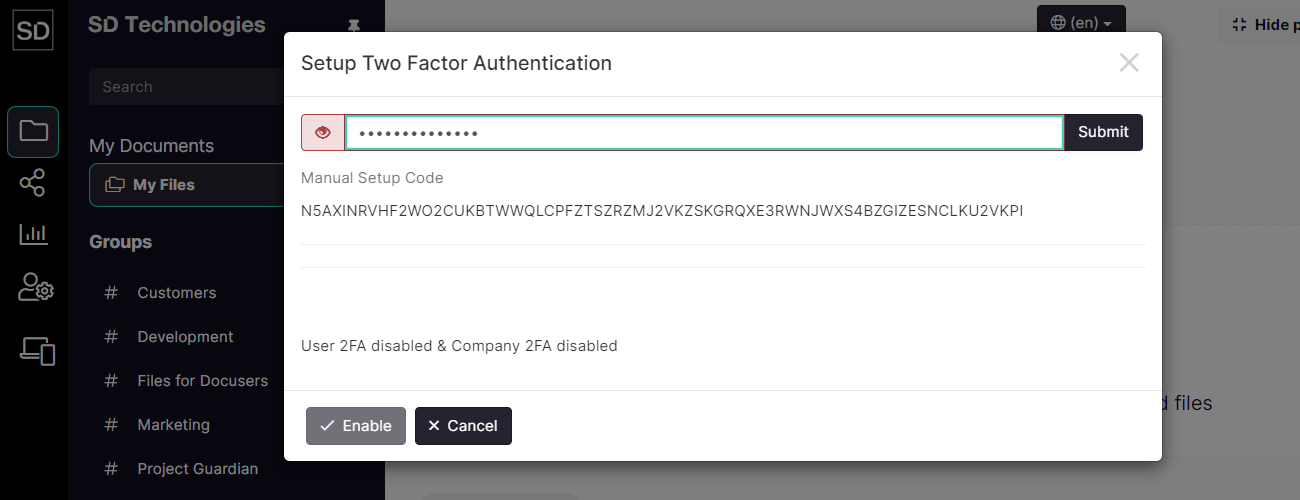
When you submit your password, a window will be displayed containing a quick response (QR) code block.
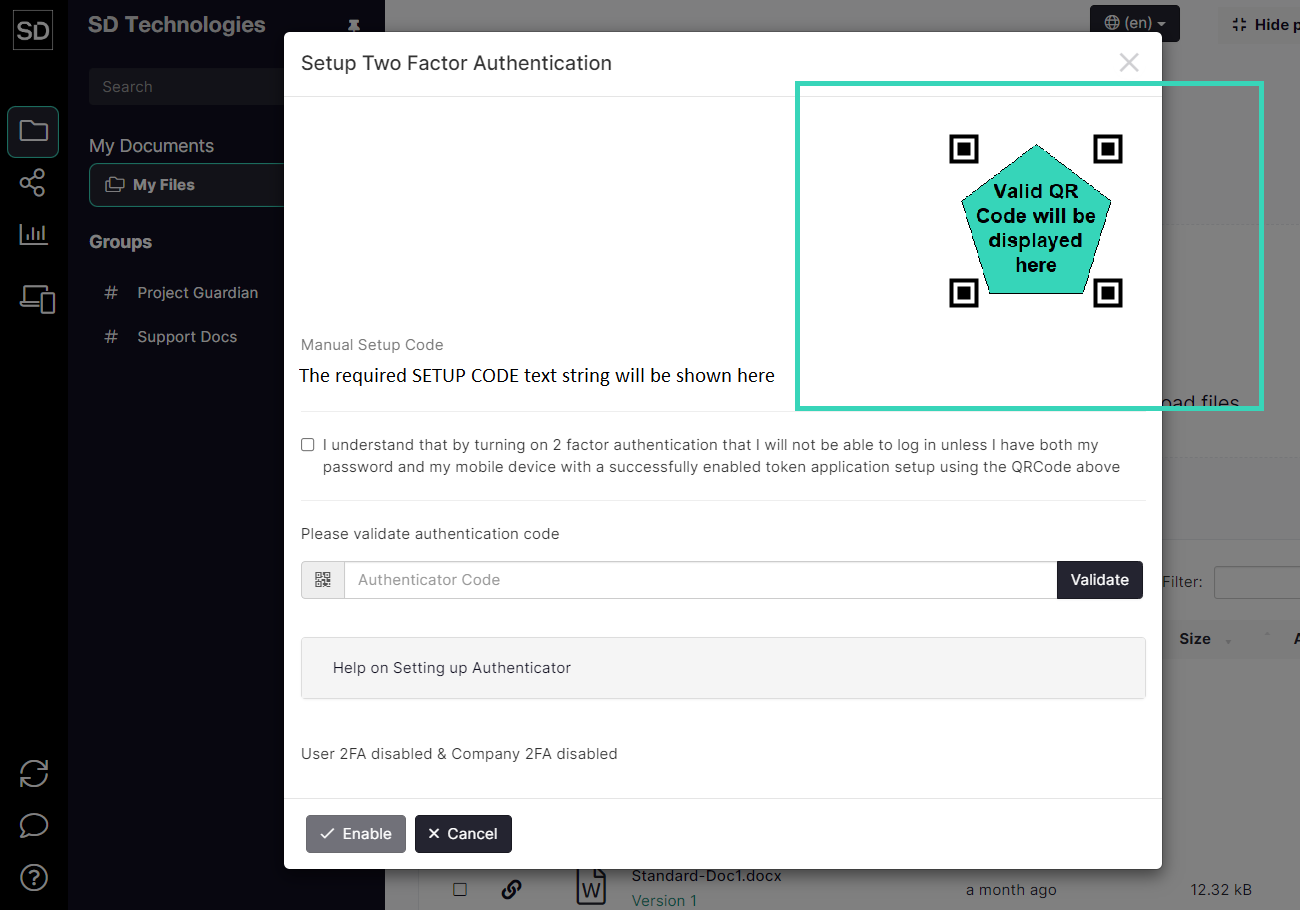
Ensure you have an appropriate authentication application on your mobile phone and scan the QR code.
If the authenticator you are using recognises your details, enter the validation code into the Authenticator Code field.
If your account has not been added to the authenticator database, follow the required steps to create an account. Re-scan the QR code and then enter the validation code.
Refer to Using Authenticator for guidance.
https://assets.suredrop.io/SureDrop-UserDocs-Images/SEN-SureDrop-Access-2FA-Individual-Setup3.png
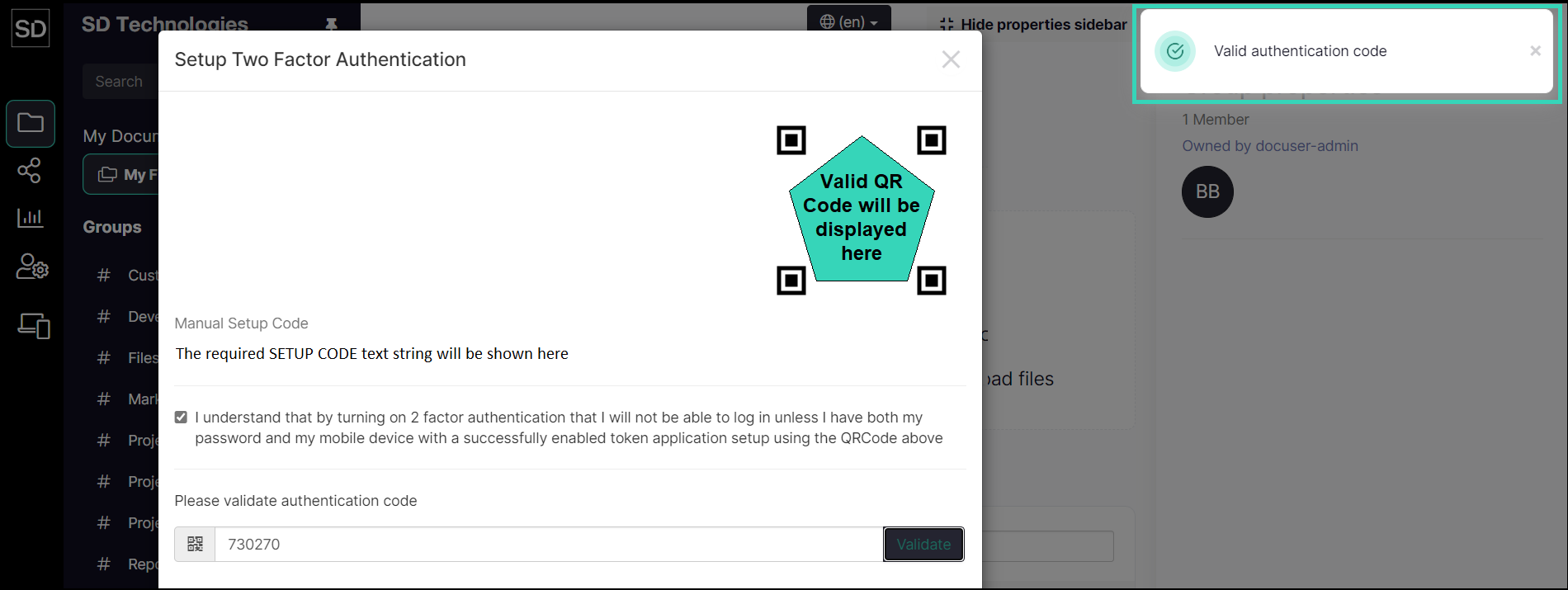
When a correct authenticator code is entered, a Valid authenticator code massage will be displayed.
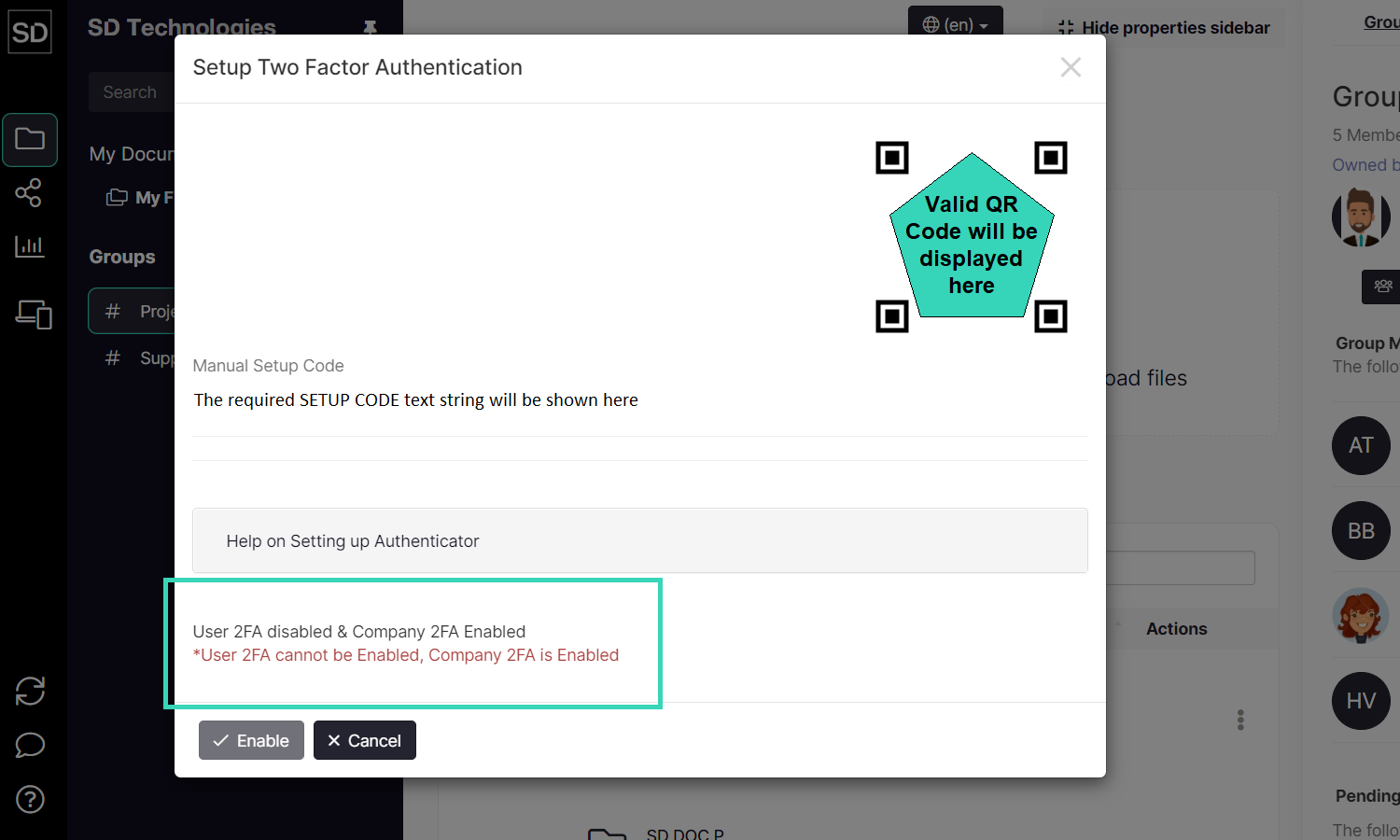
If Team-wide 2FA has been implemented, you will not be able to select 2FA for your account from this screen.