Accessing SureDrop using a MacOS Laptop or Tablet
Open the app and you will be presented with a screen similar to that shown below.
To activate the app on a mobile device, you will need either a token or QR code. To obtain either of these, follow the steps described below.
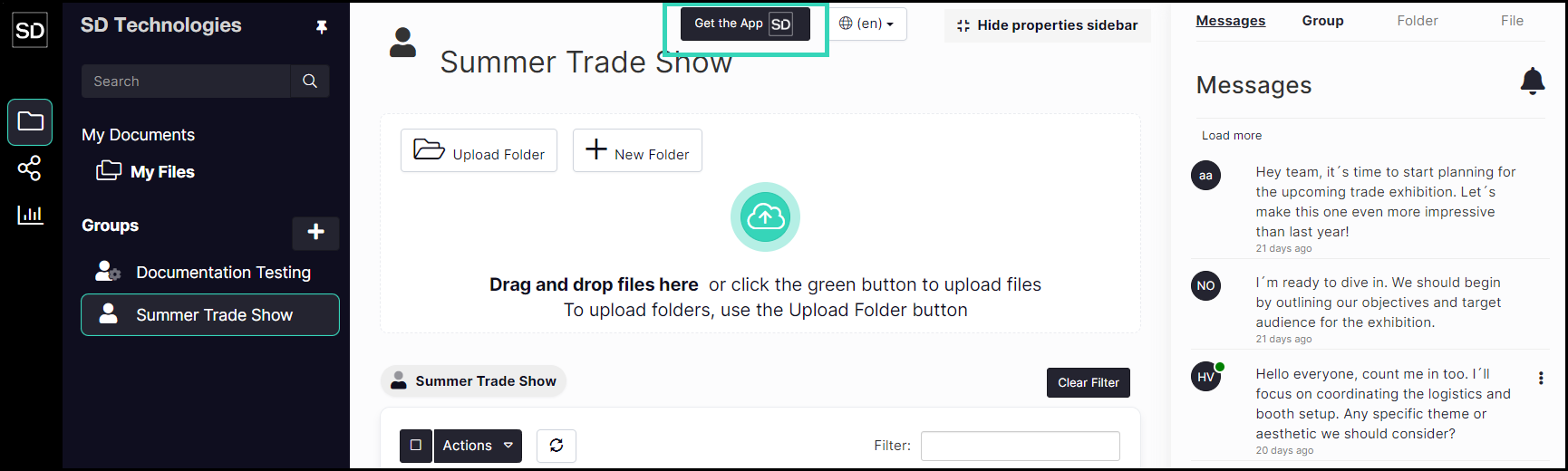
On your usual computer, log into your instance of SureDrop and select the Get the App SD button at the top of the SureDrop interface.
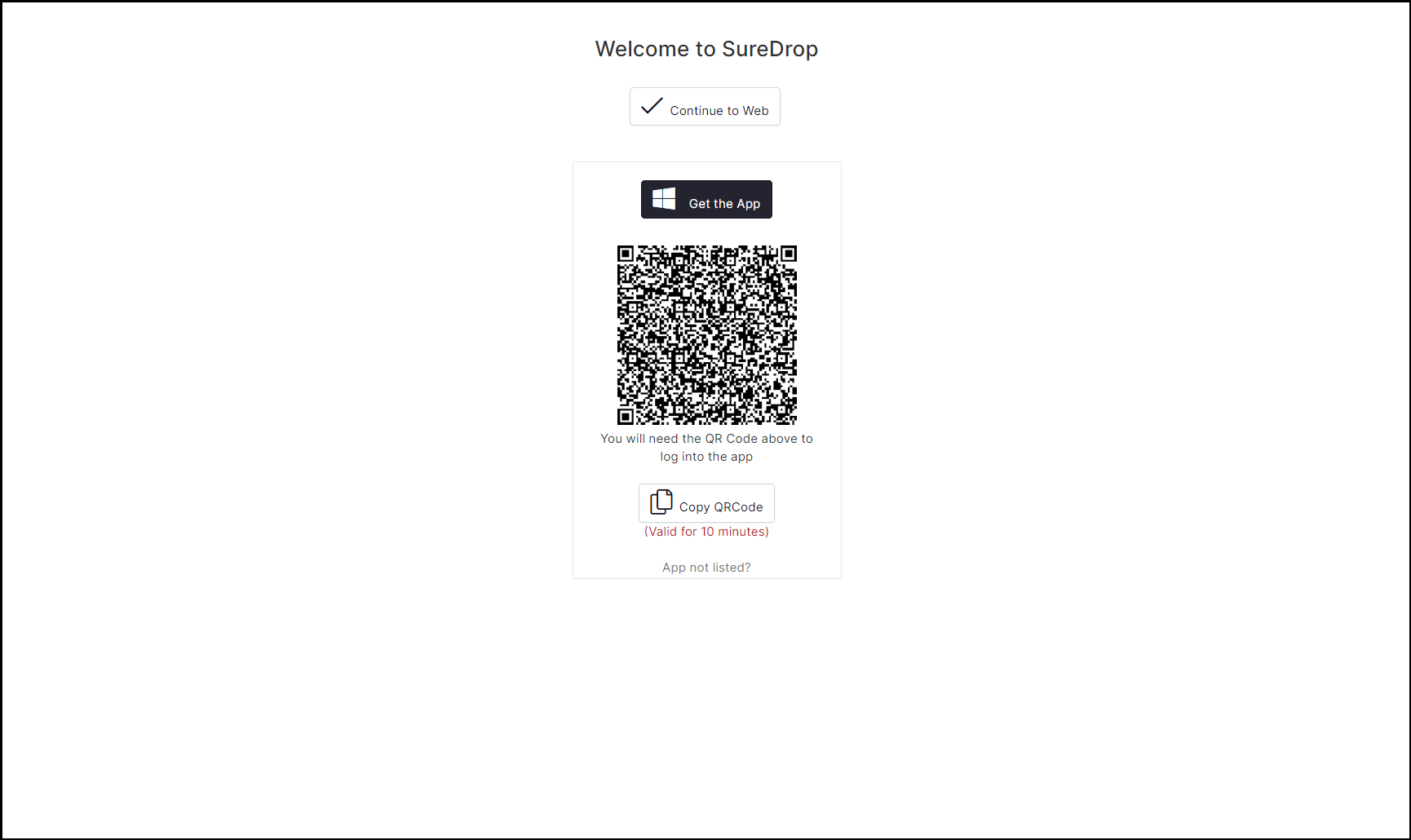
You will be presented with a screen similar to that shown below.
On your mobile device, open the SureDrop app and ‘click’ the Scan QR Token button.
Use the camera on your mobile phone or tablet to scan the QR Code displayed on your computer.
(Alternatively, click “Display Token” on the screen of your computer and then click “Paste your token” on the screen of your mobile device. Enter the detailed number carefully)
When you first access the app, you will need to register a four-digit number. Enter the four chosen digits in the first row of squares and then confirm your chosen PIN by entering the same four digits in the second row of squares.
Then click on Register.
The activation steps have now been completed.
The mobile app will then display a list of the groups to which you are a member.