Add a User
Only users in a Team who have been given administrative privileges can add or import users.
Create individual user accounts
To add one or more users, access the Admin page.
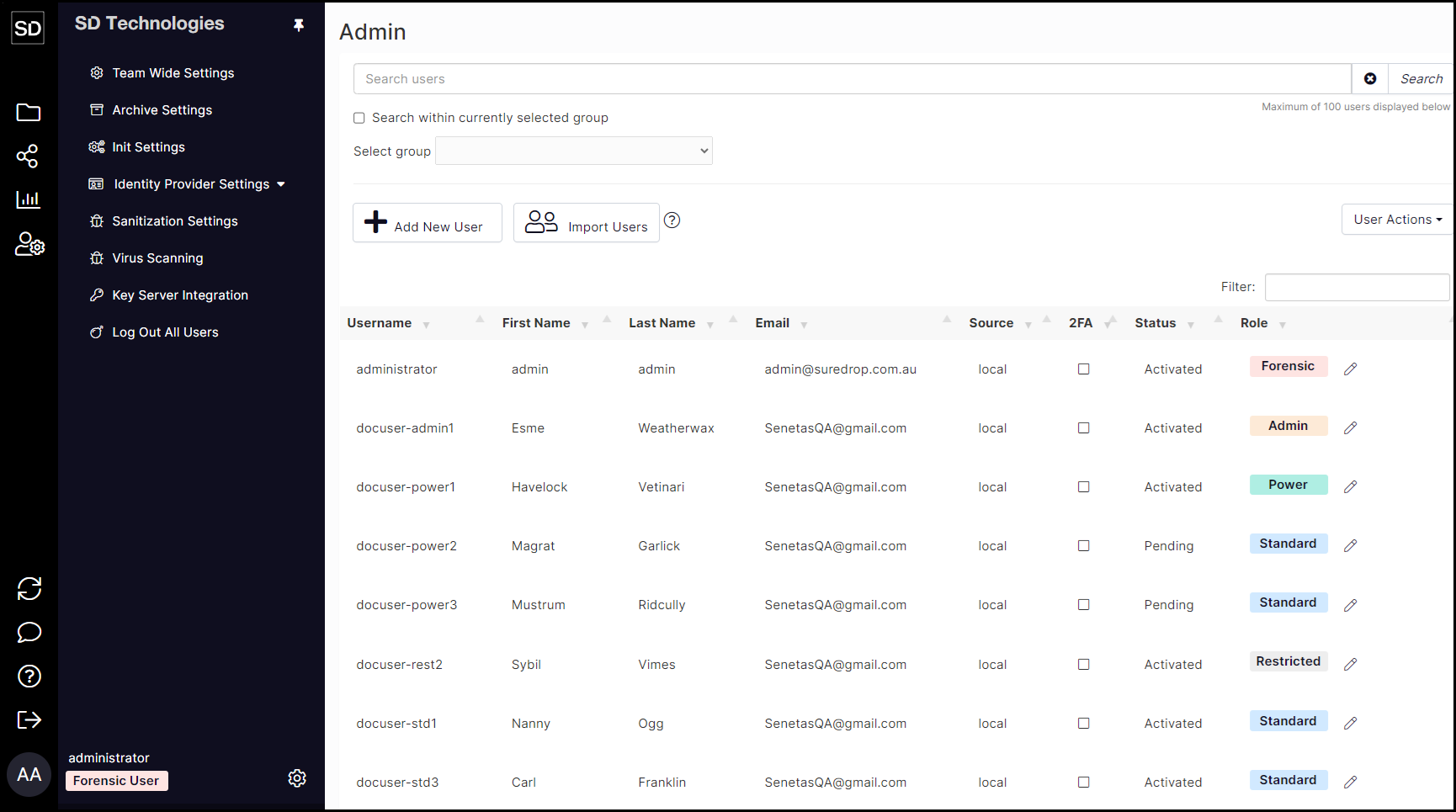
https://assets.suredrop.io/SureDrop-UserDocs-Images/SEN-SureDrop-Admin-InitialAdminDisplay.png
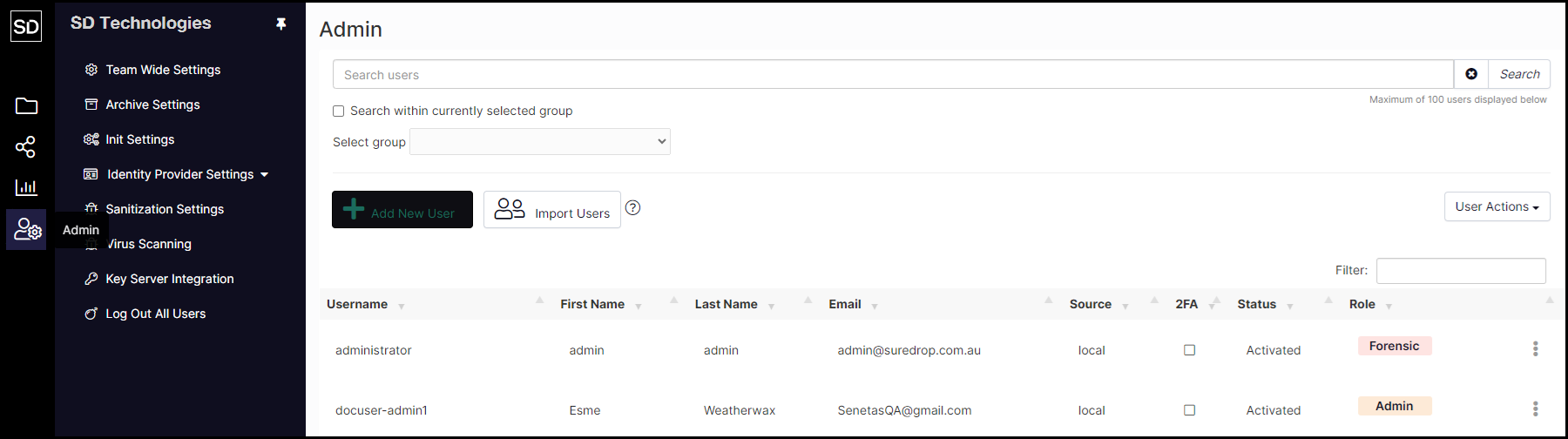
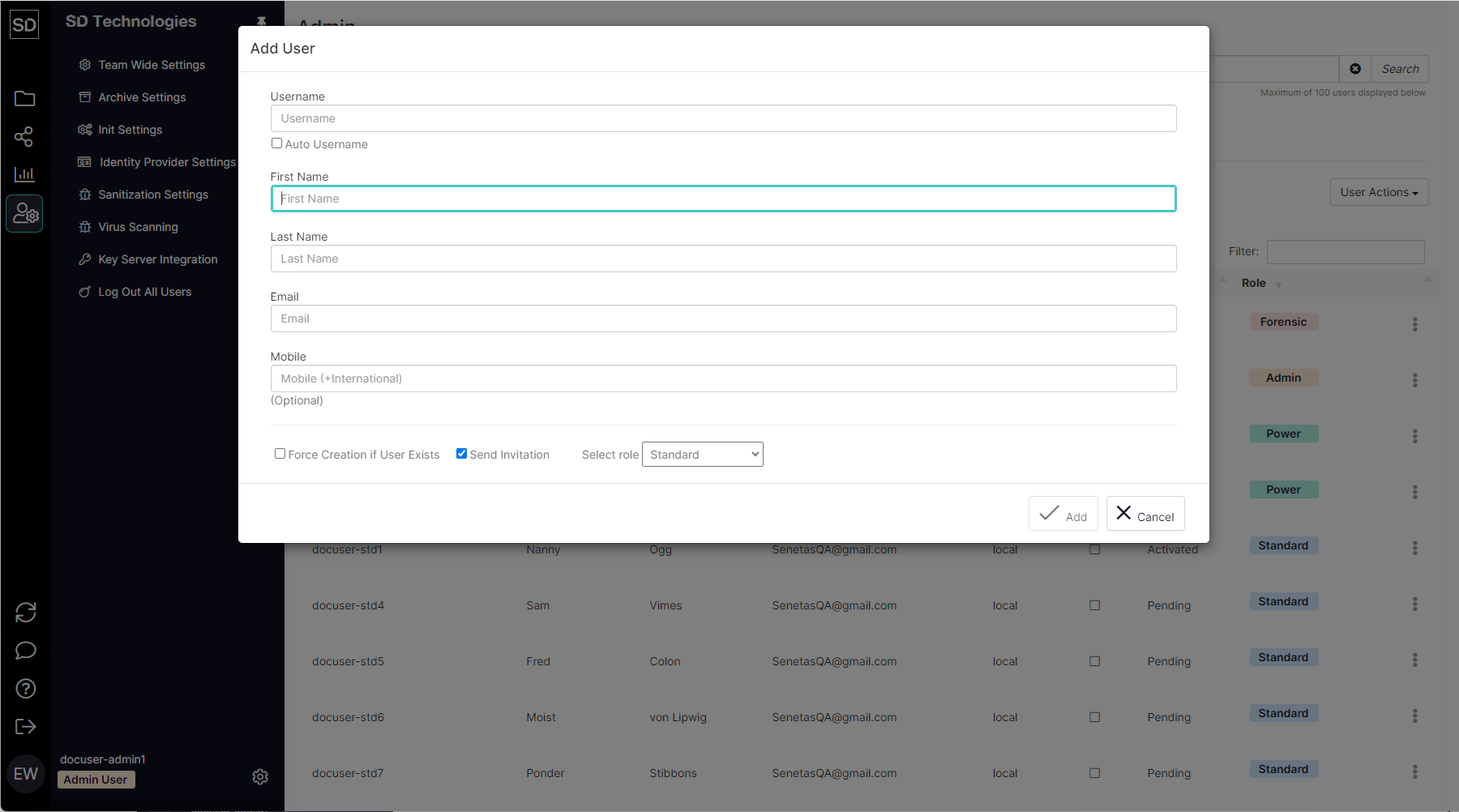
https://assets.suredrop.io/SureDrop-UserDocs-Images/SEN-SureDrop-Admin-AddUser.png
Select Auto-Username to automatically make the email address the username
User Roles
Select a role for the user.

https://assets.suredrop.io/SureDrop-UserDocs-Images/SEN-SureDrop-Admin-AddUser-SelectRole.png
The options from the drop-down menu are:
Restricted
Standard
Power
Admin
Forensic
Restricted users are most often people with whom you collaborate but are employed at a different company or agency.
Refer to Features available to users for a detailed list of privileges that each role has.
Force creation of a user

https://assets.suredrop.io/SureDrop-UserDocs-Images/SEN-SureDrop-Admin-AddUser-ForceCreation.png