Add files to SureDrop
There are several ways to import files into a SureDrop document group. These include dragging a file to the 'Drop files' area, importing a folder and its contents, or selecting files from within a folder. These are described in the following three sections:
'Drag ‘n’ drop files to the 'Drop files' area.
From your local or network computer, locate the file or folder you want to add to your SureDrop secure document group.
Click on the file name or folder name and drag it to the file drop panel at the top of the SureDrop screen.

SureDrop drag ‘n’ drop pane
The file will begin to upload to the secure storage and the progress of the upload will be displayed.

SureDrop file upload progress
You can see detailed progress information by clicking on the large, green “I” button above the bar indicating the progress of the file upload - the Import Queue screen shows the queue length and the progress of each file.
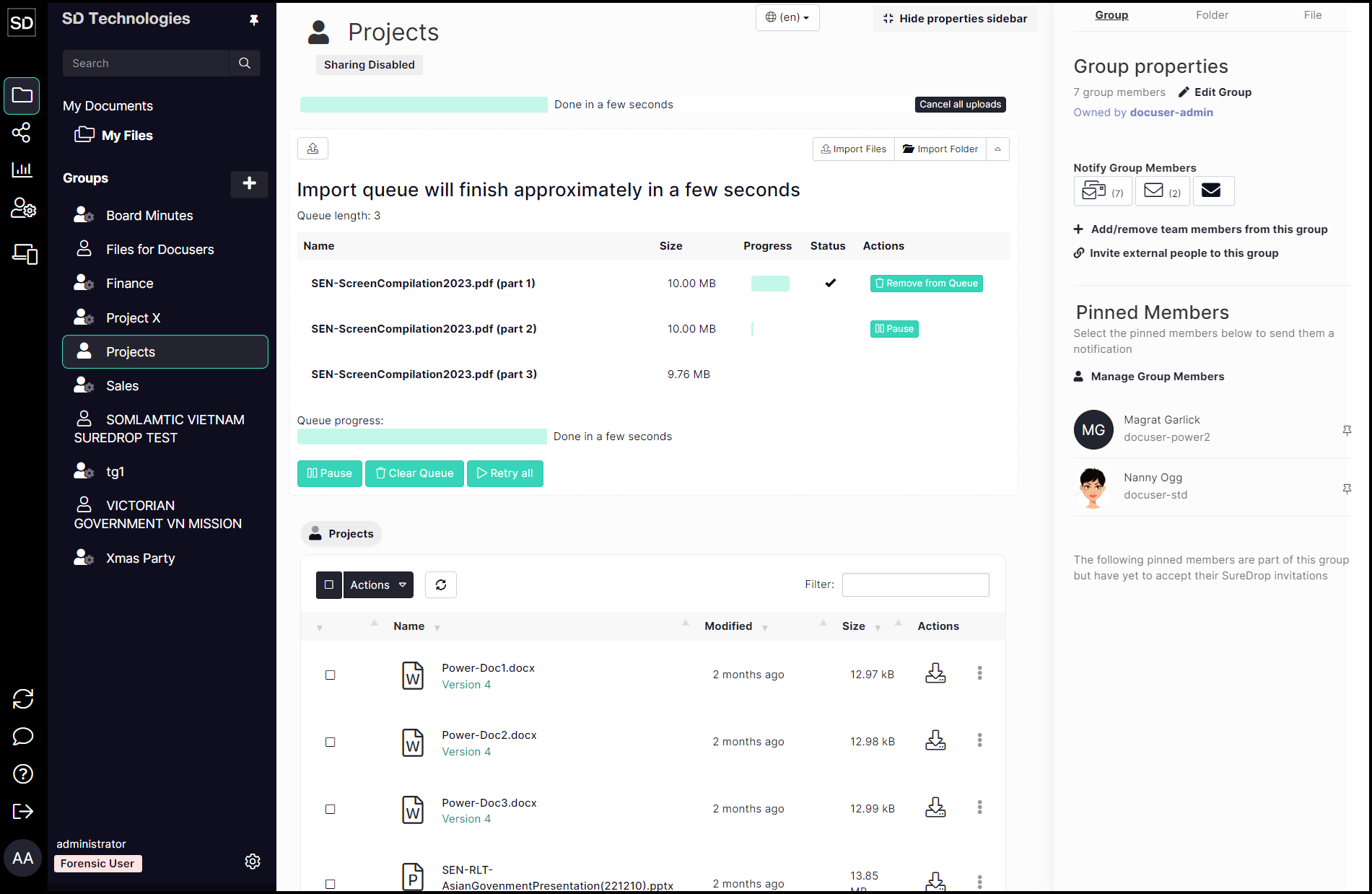
On the Import Queue screen there are several controls that can be implemented.
The whole queue can be cancelled or individual files can be removed from it.
The upload of individual files may be paused.
The queue can be cleared.
Individual files fragments being uploaded can be paused.
File fragments can be removed from the queue
Files in SureDrop are processed in 10Mb blocks, hence the three parts to the single file being uploaded in the example shown.
Import a whole folder
This opens a dialog that allows you to select a folder (and its contents) that you want to upload. The "Show Import Queue" button can be used to check the progress of the upload.
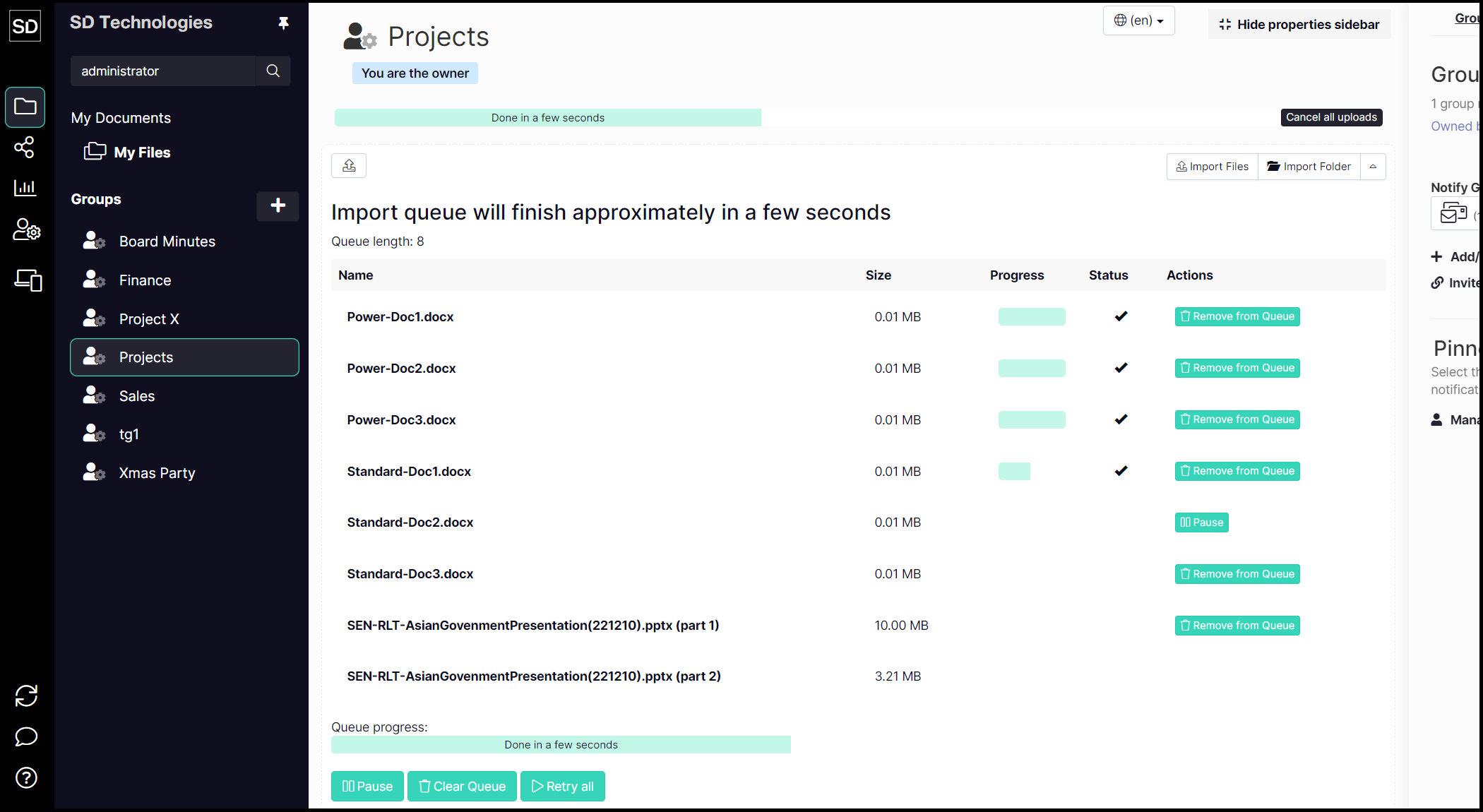
Import individual files
Importing just one file follows a similar sequence as “dragging ‘n’ dropping” a file into SureDrop.
Click on the large file import button on the SureDrop interface to open a standard file navigation dialog. Locate the file or files you wish to import and click the Open button on the dialog to start importing the file.
SureDrop will display a ‘progress bar’ as the file is uploaded.
The time taken for file uploads is highly variable, depending on connection speed, file size and other network traffic.
SureDrop file upload progress
File versions
Every time you upload a file into SureDrop it is automatically given a version number which you can see next to the left of the file name. If you upload that file again to the same location then the version number is automatically incremented.
SureDrop keeps all versions of a file, previous versions can be retrieved by clicking on the version number which takes you to a file information view. From there you can download any version of a file, add a note to any version and replace the current version with a previous version.
File Notes
A text note can be added to any file using the Add Note button next to each file. File notes are shown on the file information screen which is accessible from the “Show Versions” button next to each file or from the “Info” menu item accessible from the ellipsis at the end of each filename. File notes are associated with a particular file version, more than one note can be created for each version and a description of the file for all version can also be created.