Add users to a group
Admin and Forensic users only
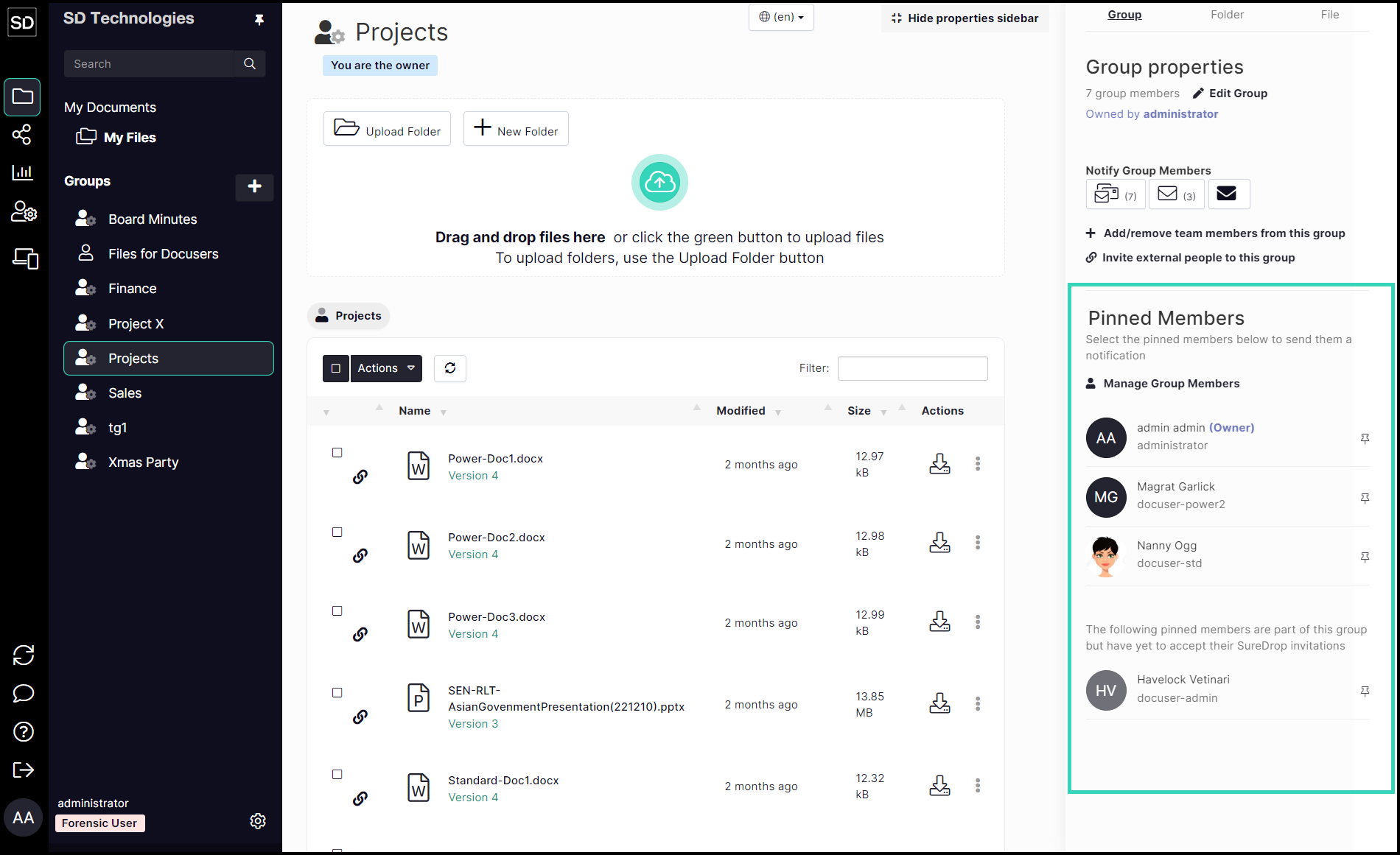
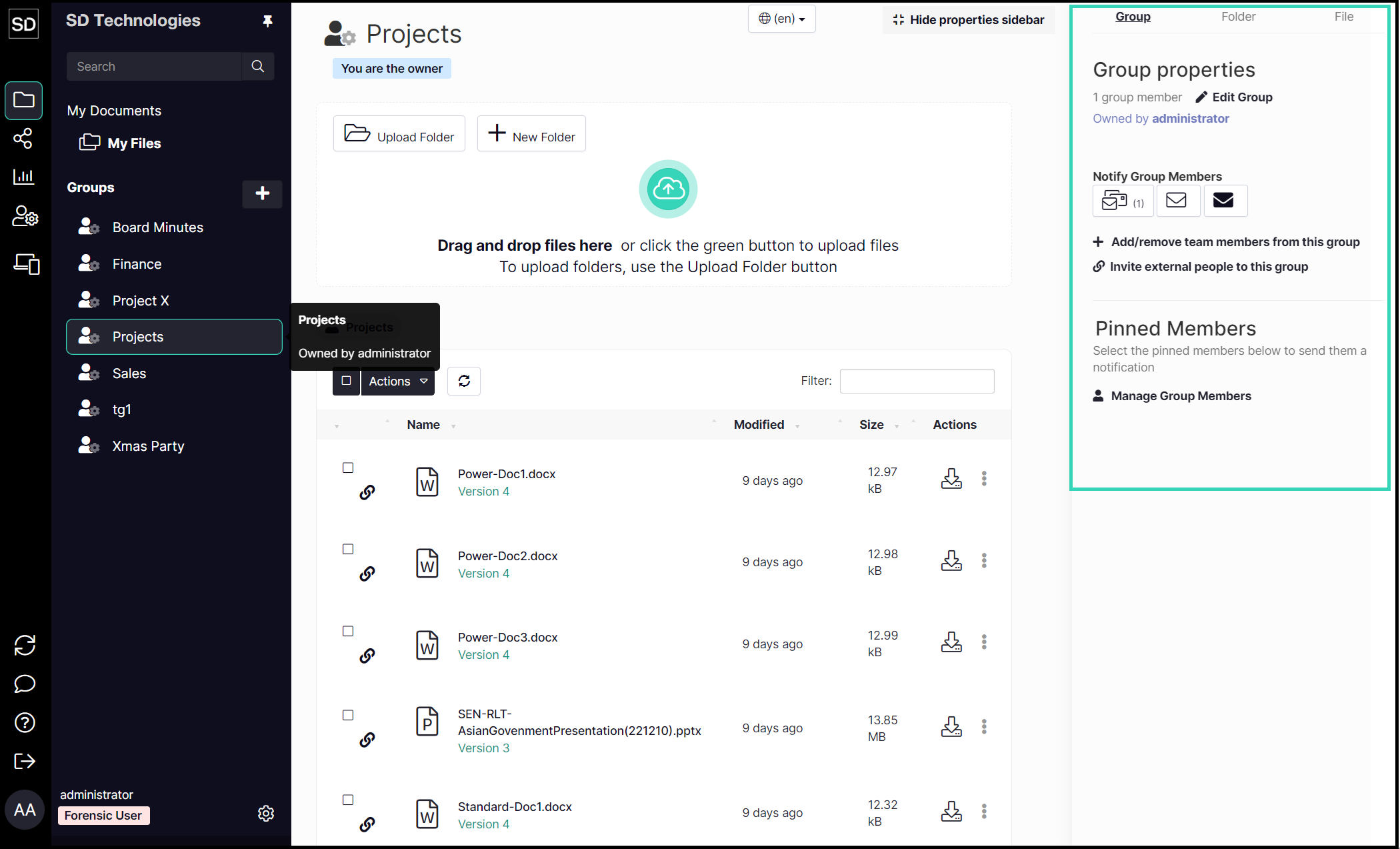
To add new members to a group, display the Group Properties sidebar.
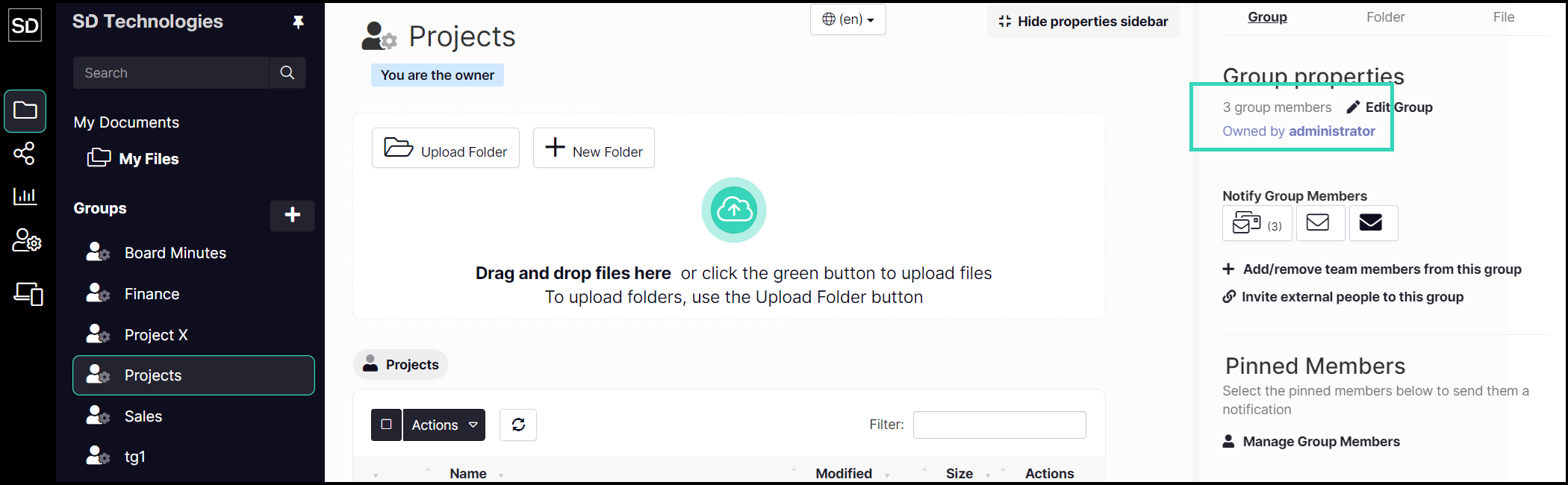
At the top of the sidebar, the number of team members who have been assigned to the Group is displayed.
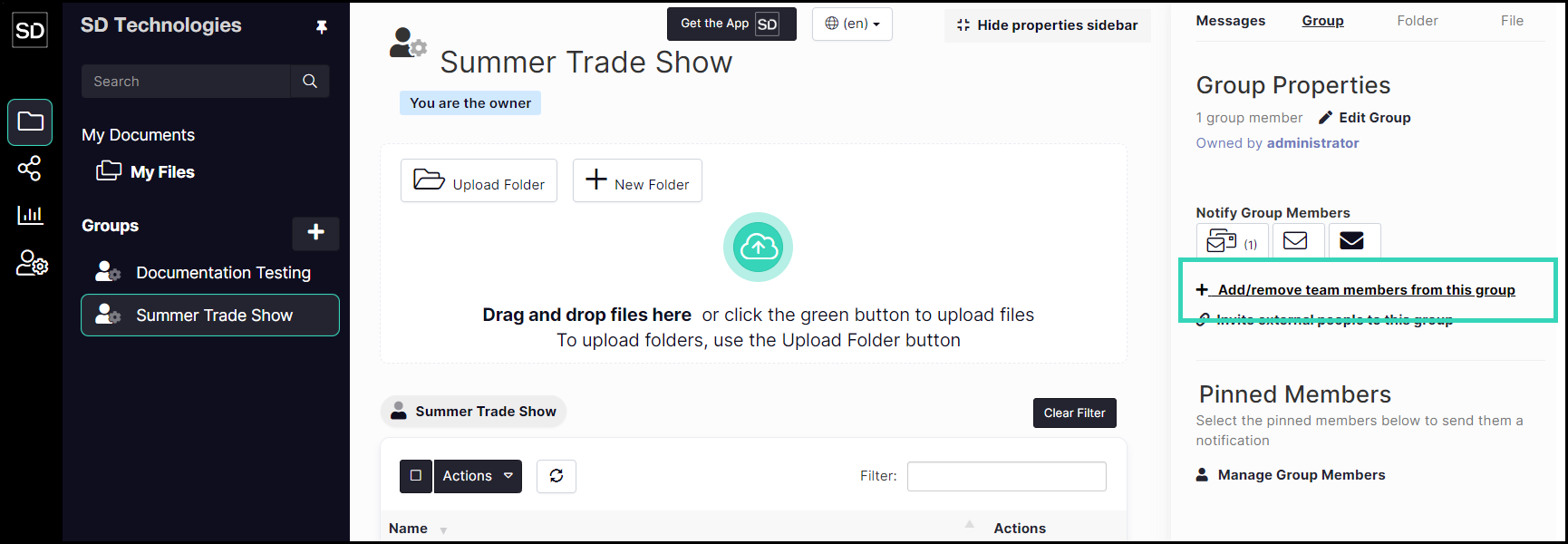
To assign Team members to the group, click on Add/remove team members from this group:
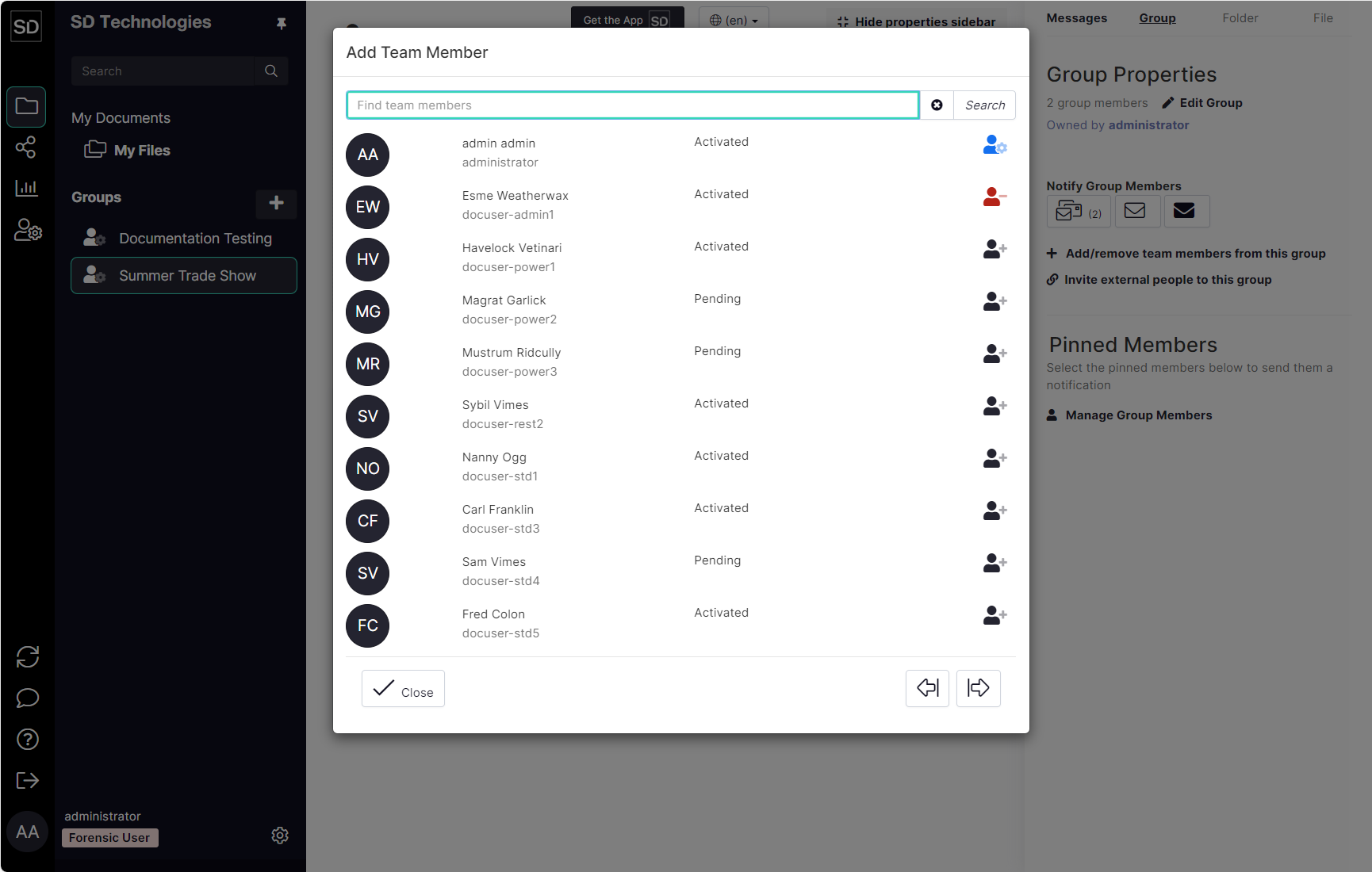
From the list of available users, click the icon at the end of a row to make that user a member of the current active Group.
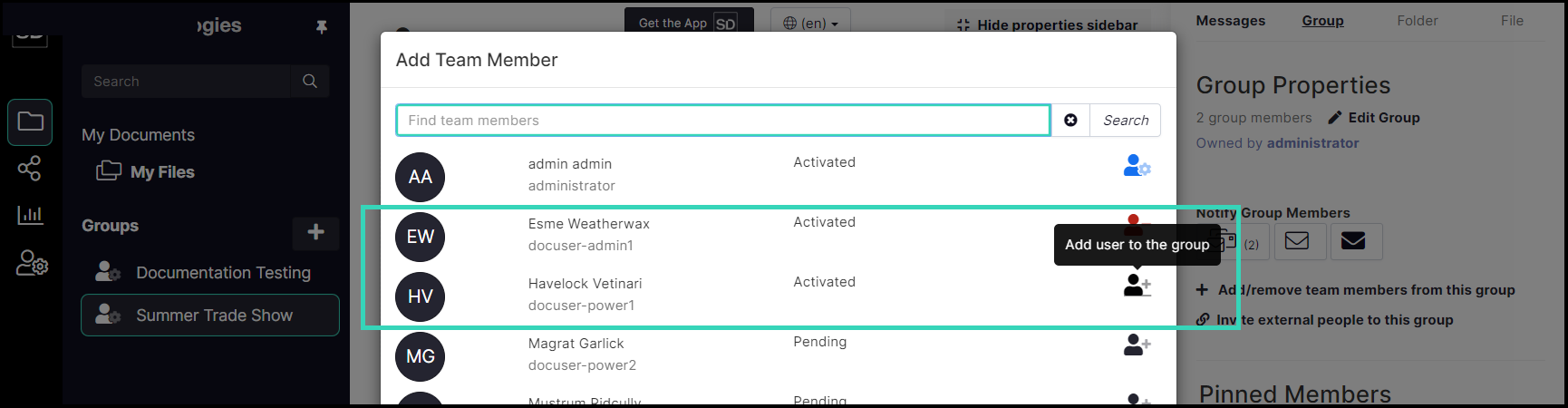
SureDrop records the action of adding a member to the group and displays the message shown below.
The coloured icon next to the name of the user changes from black to red and the plus (+) sign changes to a minus (-) sign.
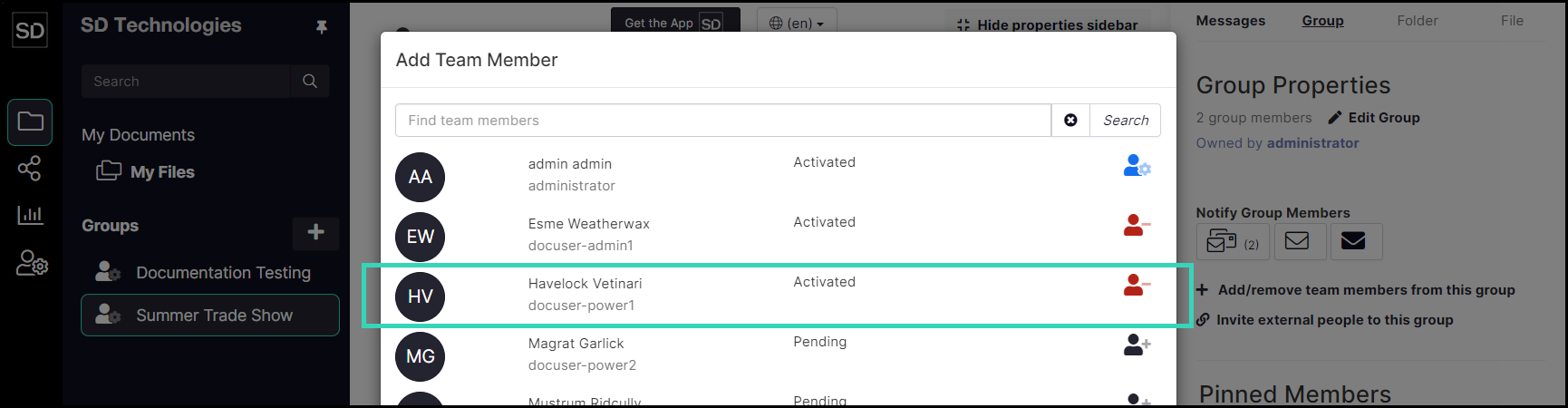
The value of the total Group Members will increase by the number of new names added.
Add Pending users
Team members who have a status of “Pending” may be added to group.
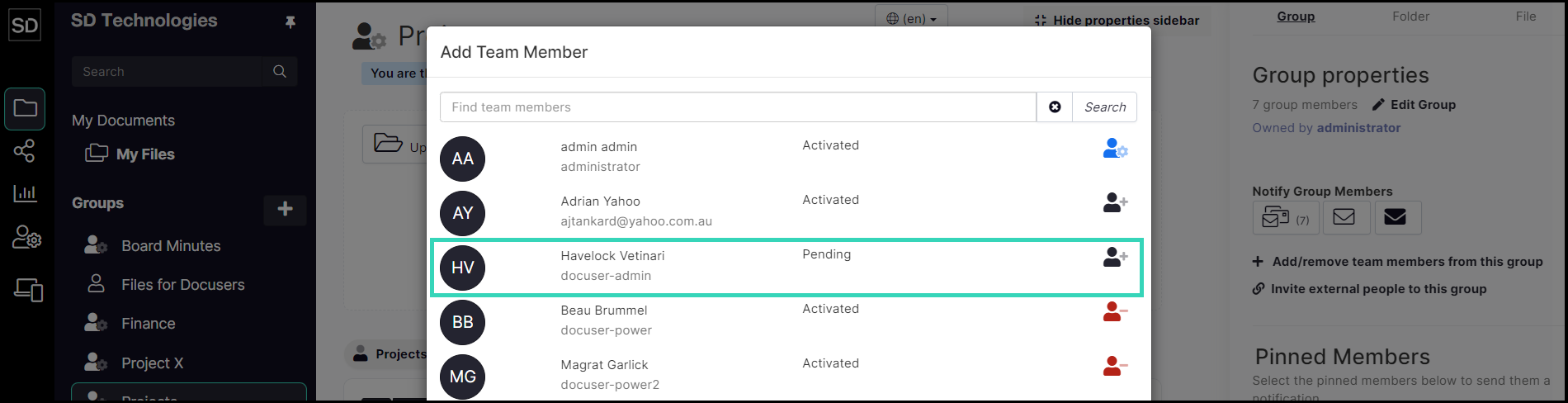
However, until their account has been fully activated, Pending members cannot be selected as a group owner, nor are they able to send notifications to other users.