Change Group Ownership
While a Team administrator will create and curate the groups within your Team, ownership of a group may be assigned to any member with the appropriate privileges.
Group ownership
The user that creates a group automatically becomes the initial owner of that group.

After members have been assigned to a group, any member with the appropriate privileges can be assigned ownership of that group.
To change group properties a member must be either a Power, Admin or Forensic user.
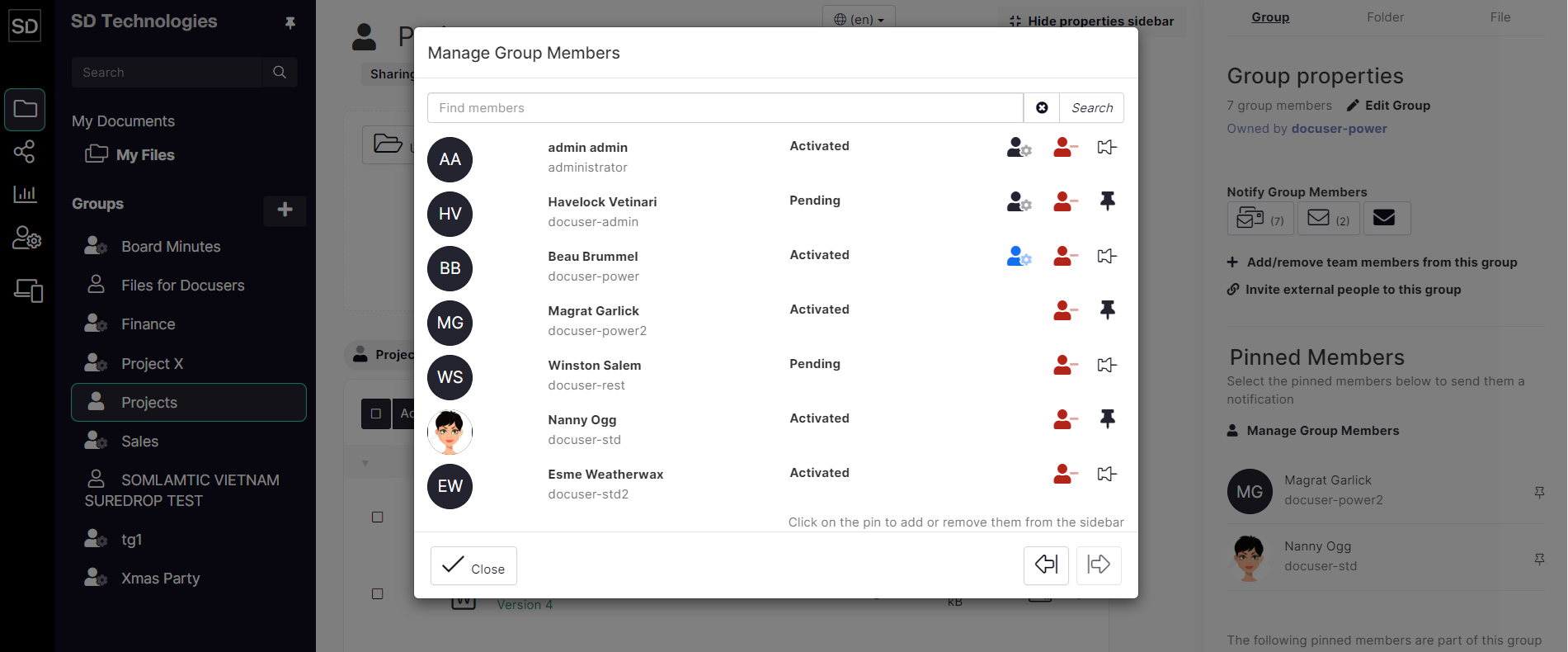
In the example shown, there are seven members in the group, three of whom have been pinned to the Properties sidebar. The “head ‘n’ shoulders” icons with a cog next to it indicate those members who are eligible to be made the owner of the group.
The blue version of the icon indicates which user is the current owner.
https://assets.suredrop.io/SureDrop-UserDocs-Images/SEN-SD-Group-GroupOwnership-Members.png
Change ownership
In the image below, the owner of the group Projects is shown as docuser-power.

https://assets.suredrop.io/SureDrop-UserDocs-Images/SEN-SD-Group-GroupOwnership-OwnerCurrent-1.png
Click on the Manage Group Members button to display the list of members.
Click on one of the grey icons next to the name of the member to whom you wish to assign ownership.

https://assets.suredrop.io/SureDrop-UserDocs-Images/SEN-SD-Group-GroupOwnership-OwnerCurrent-2.png
The colour of the icon for the new owner changes to blue and SureDrop displays a message confirming that the change has taken place.

https://assets.suredrop.io/SureDrop-UserDocs-Images/SEN-SD-Group-GroupOwnership-OwnerNew-1.png
When you have finished making changes, click on the Close button.
The new group owner will be shown at the top of the Group Properties sidebar.

https://assets.suredrop.io/SureDrop-UserDocs-Images/SEN-SD-Group-GroupOwnership-OwnerNew-2.png