Edit User Profile
When a user account is created within SureDrop, the default user icon is a circle with the initial letters of the given and family names of the user.

To access the Edit User Profile window, click on your user icon at the bottom of the left-hand navigation panel.

Alternatively, you can click on the user profile link.

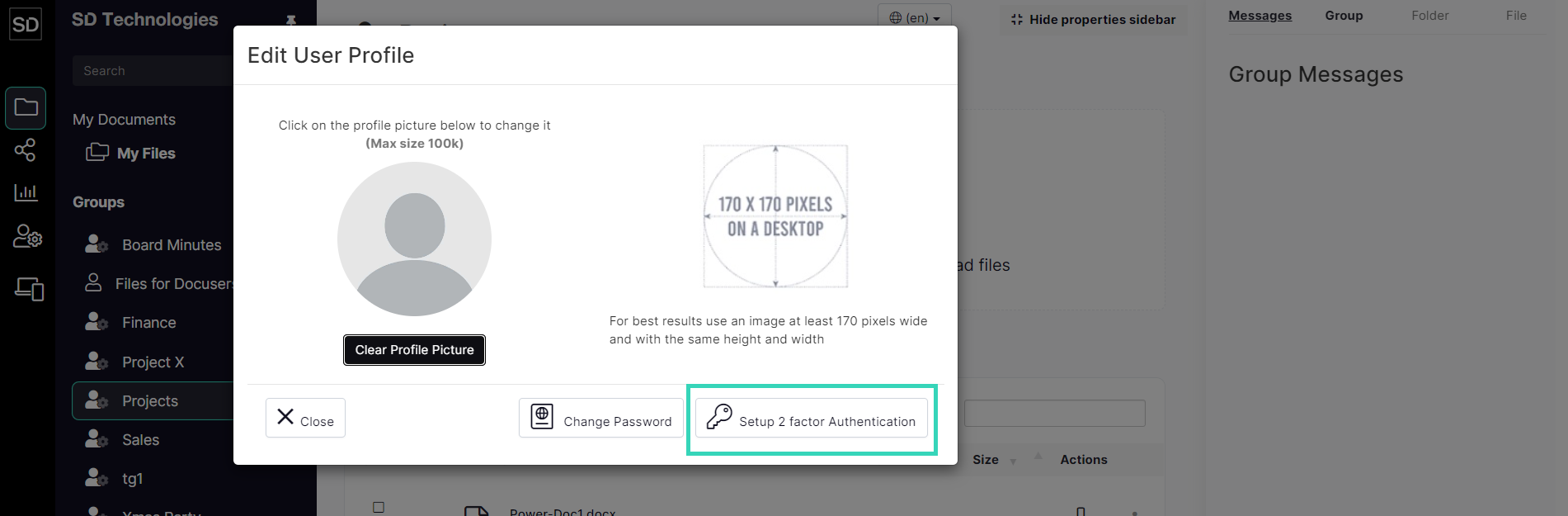
For new accounts, the following window is displayed:
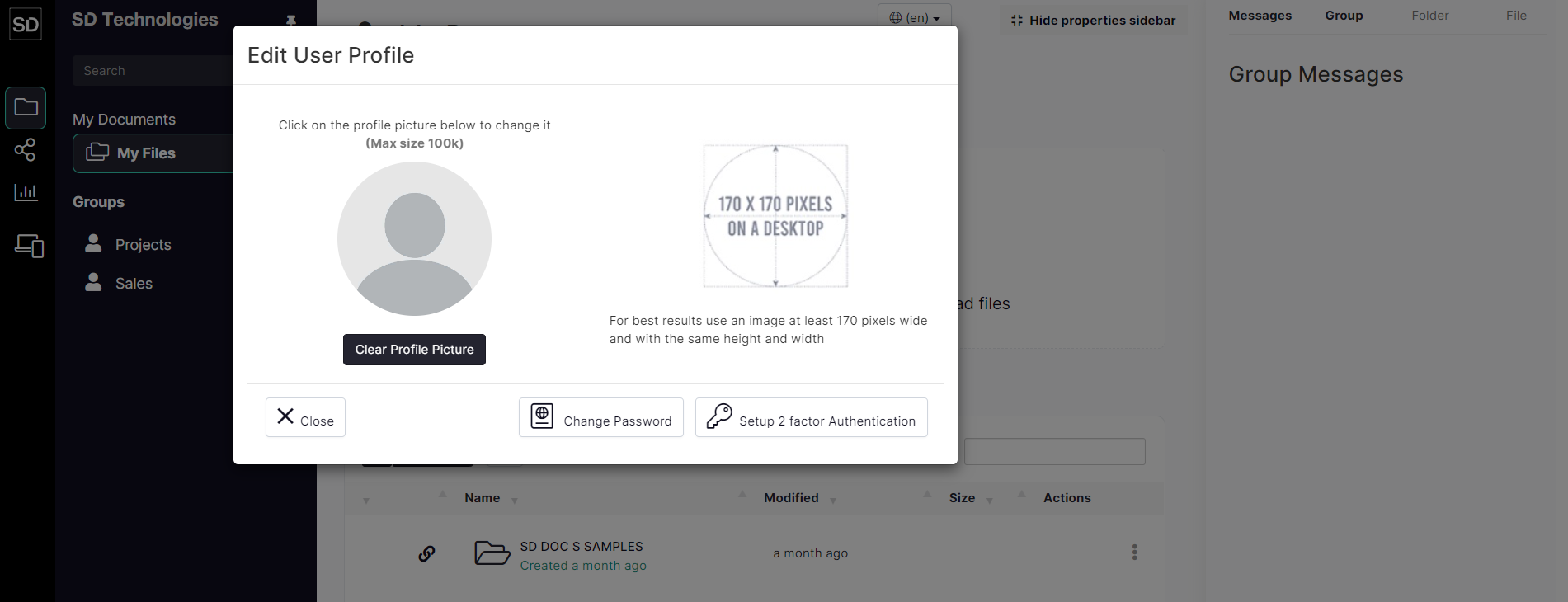
The default profile picture is a highly stylised ‘head and shoulders’ image of a person. To add a profile picture, click on the icon to open a standard file navigation window. Locate the image you wish to associate with your account and click Open.
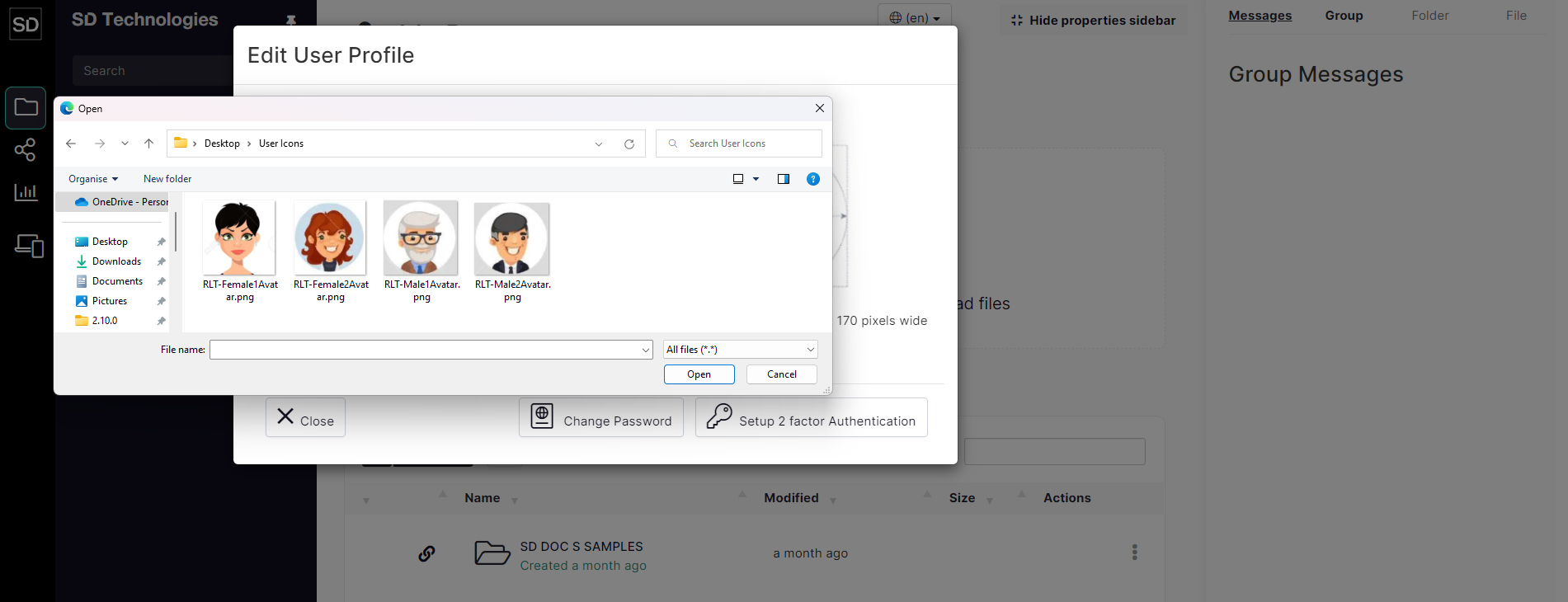
The image will be uploaded to SureDrop and appear instead of the stylised icon.
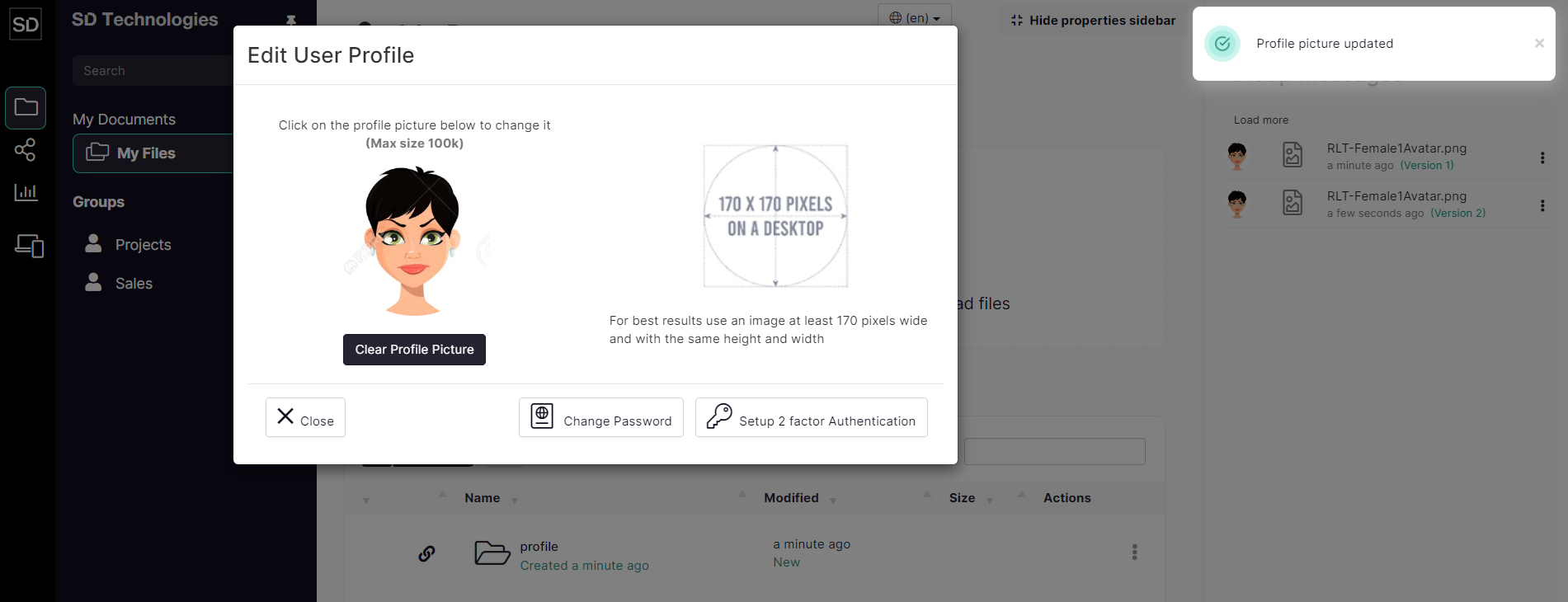
For optimum performance, the image you choose should be as close to the dimensions indicated. SureDrop will shrink or expand an image to best match the recommended size, but distortion will occur if there is a different aspect ratio.
Amend access control
Change Password
Click on Change Password
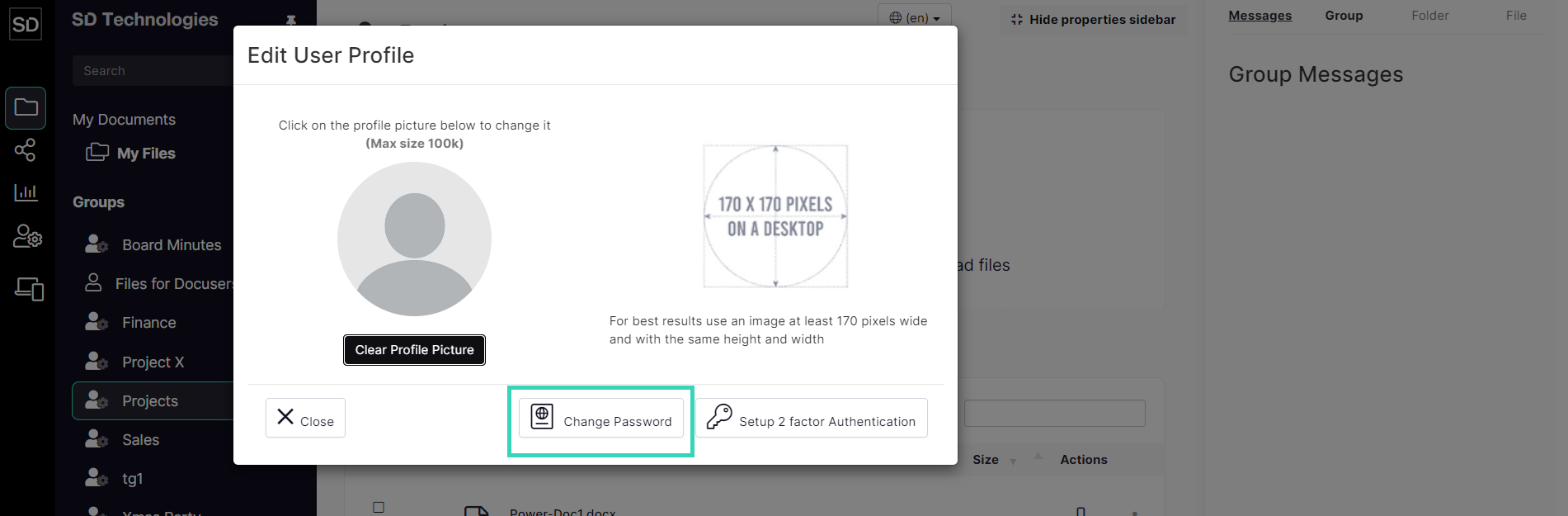
Refer to the Change Password section for information about amending your profile password.
Two Factor Authentication
Click on Setup 2-Factor Authentication.
Refer to the Two-Factor Authentication section of this manual for information about establishing a greater degree of access security.