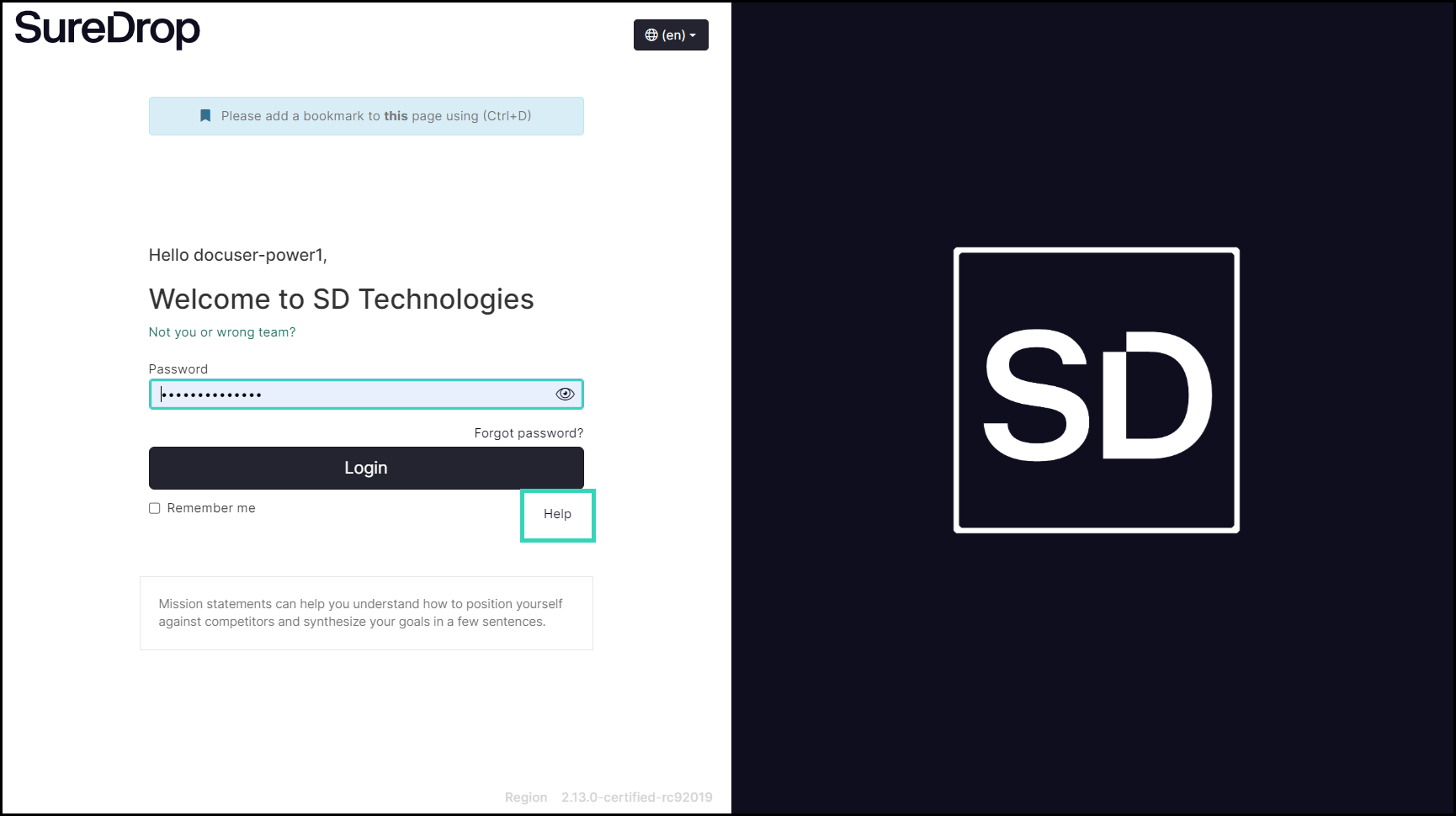
Password recovery
If you forget your SureDrop password then you can request a new one from the system administrator by selecting Forgot password? on the SureDrop login screen.
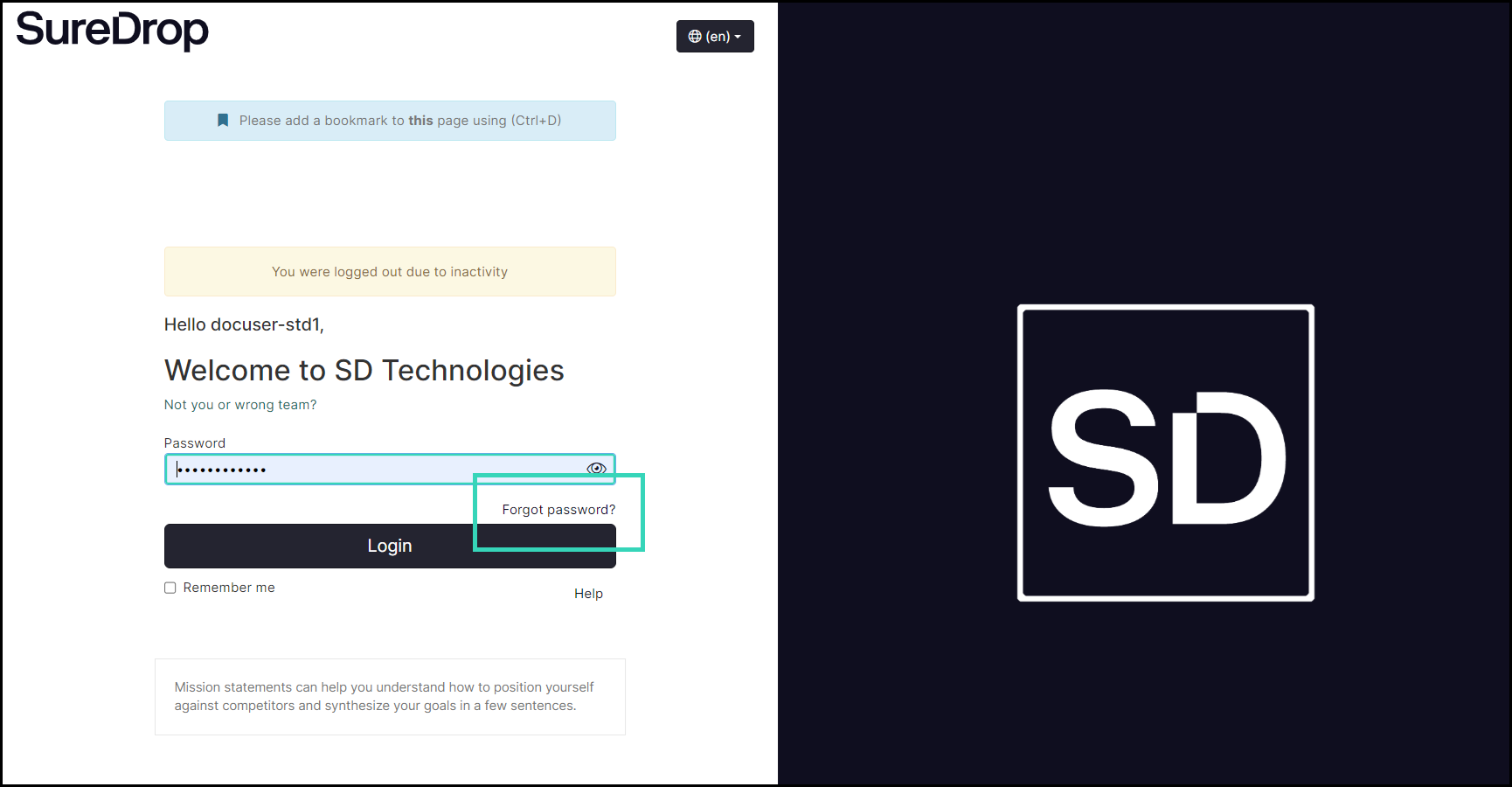
https://assets.suredrop.io/SureDrop-UserDocs-Images/SEN-SureDrop-Access-ForgotPassword.png
This will display a screen that prompts you to reset your password. It will be pre-loaded with your Team name and username.
If these values are correct, click the Send button.
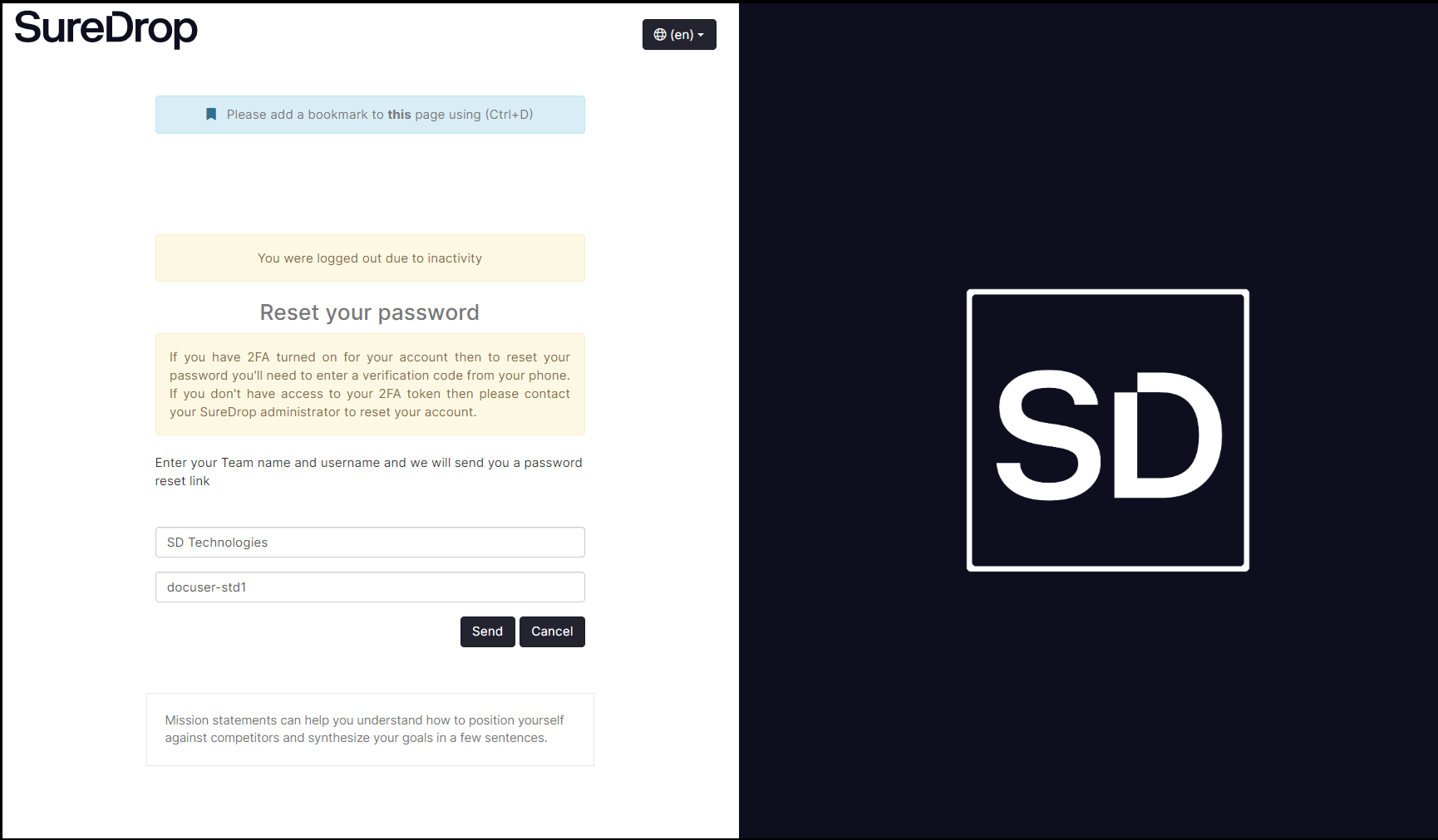
https://assets.suredrop.io/SureDrop-UserDocs-Images/SEN-SureDrop-Admin-ResetPasswordRequest.png
This request will result in a new activation invitation being sent to you.
If you have enabled two factor authentication (2FA) the email will be sent to your email address.
If 2FA has not been enabled then a request will be sent to the system administrator of your Team.
An example of the email that is sent is shown below.
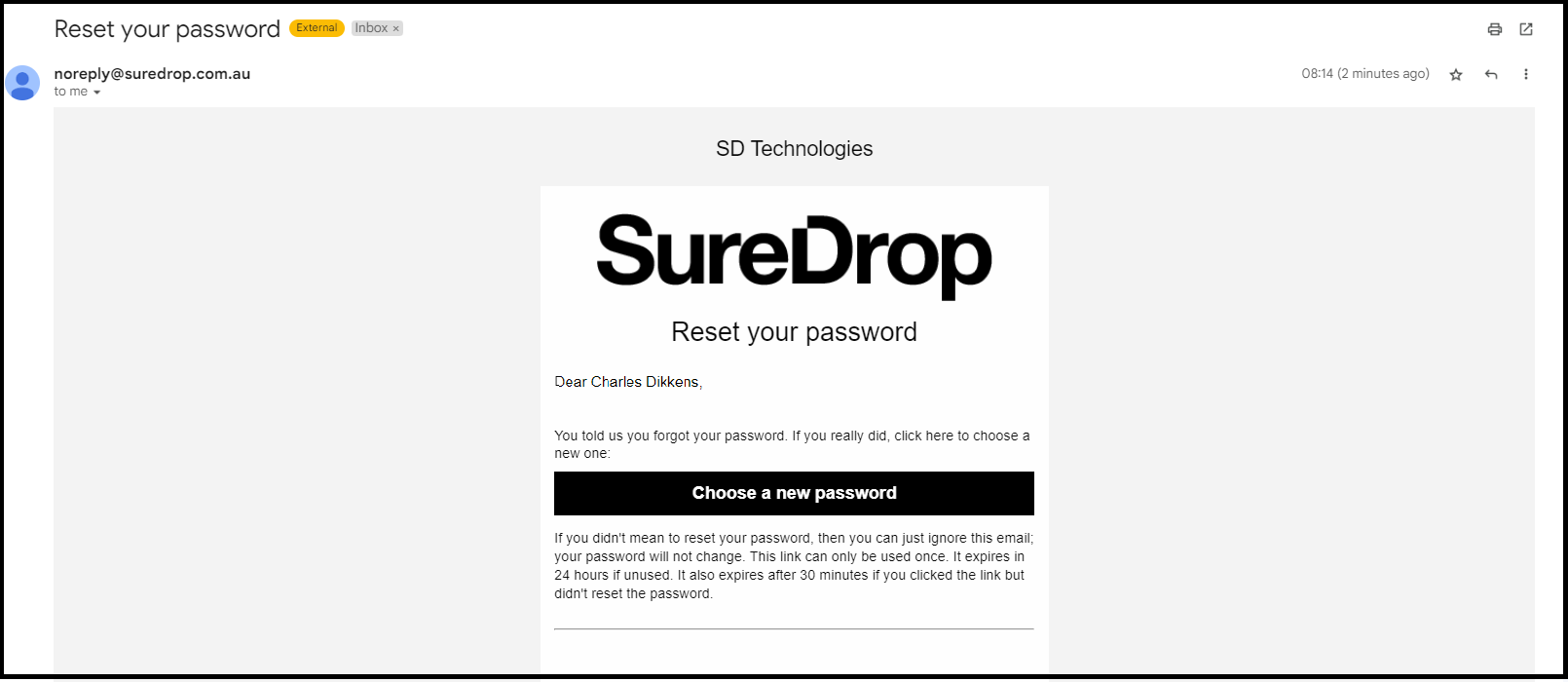
Clicking on Choose a new password displays the screen where you can enter new password details.
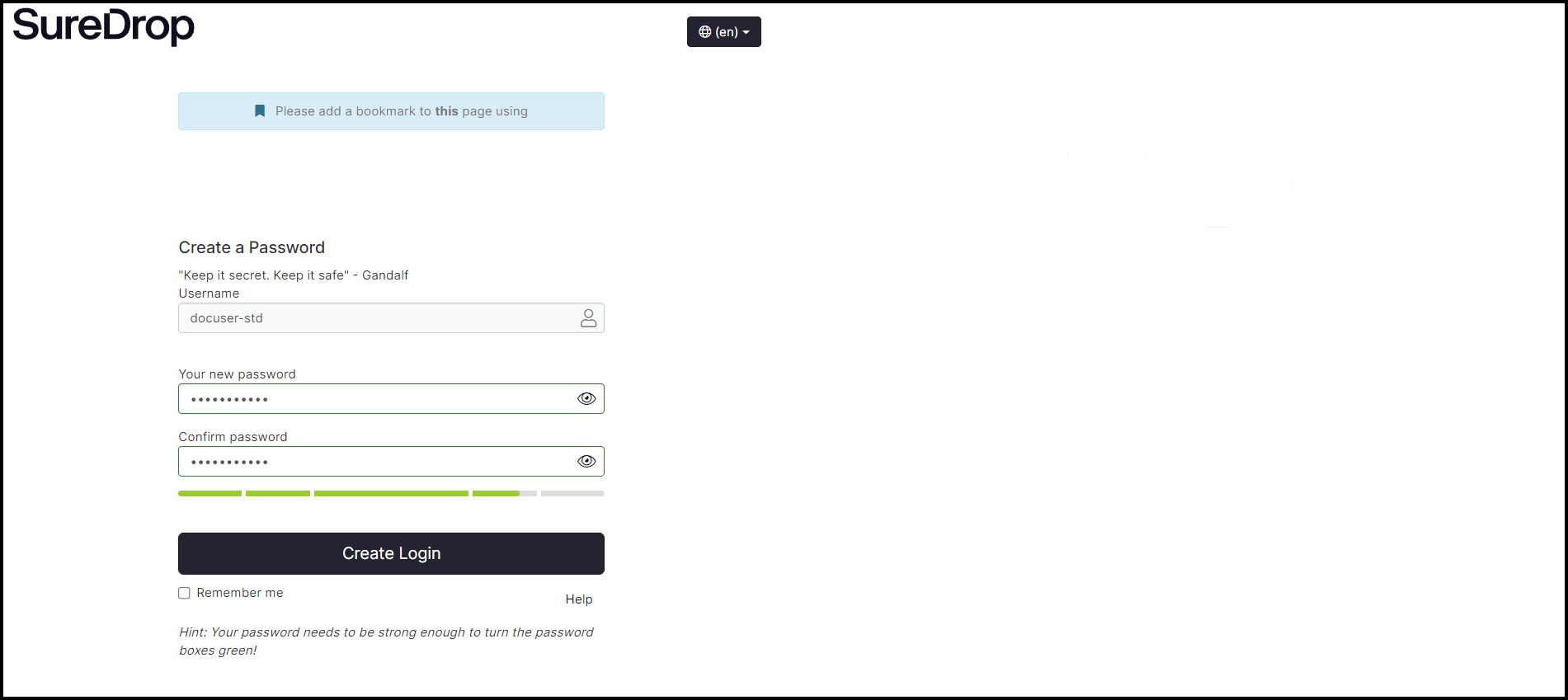
Click on the Create Login button to save the new information about your account.
Additional assistance
If necessary, you can request additional assistance by clicking the Help button on the SureDrop login screen.